
The Mailroom.
The Mailroom is where you track all the intelligence you have shared with your Stakeholders. It is a single page covering the whole outbound picture: a dashboard of what you have sent, a list of everything that has gone out or is waiting to go, and the email templates that carry them.
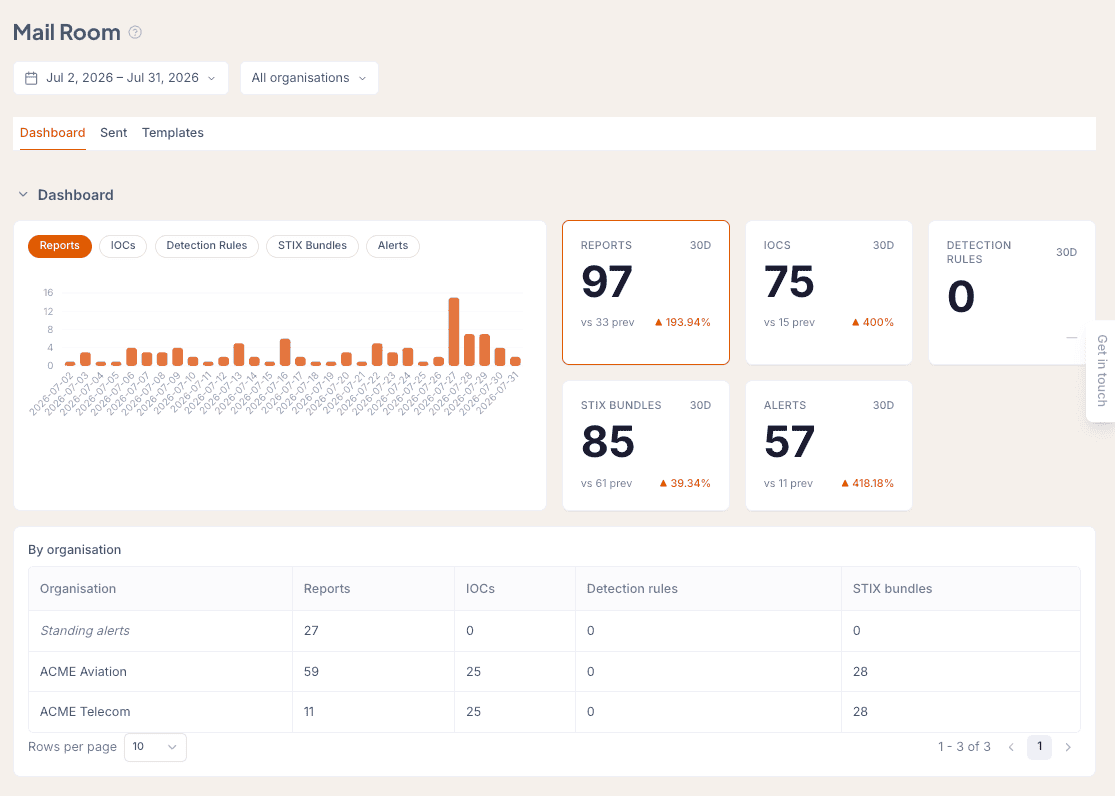
What is on the page
Dashboard. Filter by date range, whether the last 24 hours, the last 7 days, the last month, or a custom range. The dashboard shows a timeline with the number of reports, IOCs, detection rules, and STIX bundles you have shared, alongside how that compares with the same previous period, then breaks the same figures down by Organization so you can see which products went where.
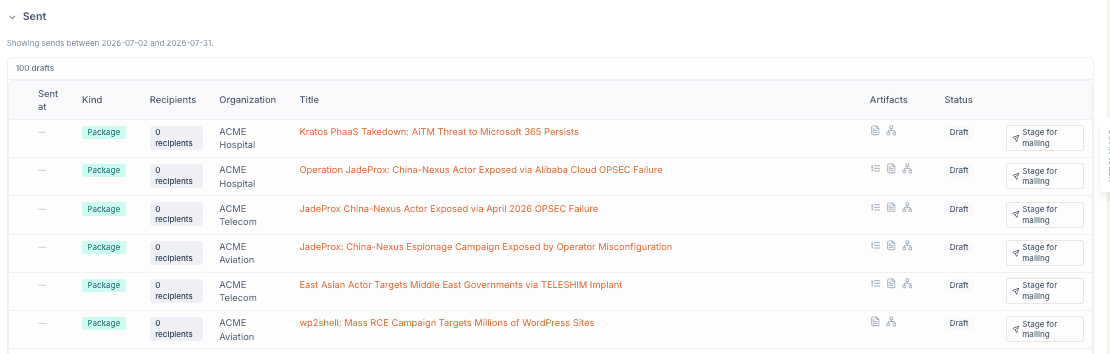
Sent. The full history: what went out, on what day, and to whom, with links through to the reports themselves. When something was sent off the back of an alert, you can see which alert rule triggered it and whether it delivered successfully. Items that are staged but not yet sent sit in the same list with a Draft status and a Stage for mailing action, so the queue of work waiting on a decision lives beside the record of what has happened.
Templates. The email templates that carry everything above. If you are an Admin or an Owner, this is where you customise them.
Each item in the Sent list shows its kind. Scheduled daily digests appear as Daily report rather than being lumped in with the packages you generate by hand, so a list dominated by automated sends still reads clearly.
Artifact types
Every item carries a strip of small icons showing which artifacts it contains. The strip is the fastest way to tell an IOC-only push from a full intelligence product without opening either.
| Icon | Artifact | What it is |
|---|---|---|
| Document | Markdown report | The written intelligence narrative |
| Ordered list | IOC CSV | Indicators of compromise, ready to import or block on |
| Network graph | STIX 2.1 bundle | Machine-readable structured intelligence: entities and the relationships between them |
| Shield | SIGMA rules | Vendor-agnostic detection rules for your SIEM |
A dash in place of the strip means no artifacts were attached to that item.
The branded PDF is not in the icon strip. It travels as an email attachment rather than as one of the artifacts attached to the item, so an item can arrive with a PDF in the recipient's inbox and show only the document icon here.
Sending a report
You send reports from the Intelligence Packages page, which lives under your Organization.
- Go to one of your Organizations and open Intelligence Packages.
- Click a package, then click Stage for Mailing.
- Choose who you want to send it to, then send. It goes out immediately and becomes trackable in the Mailroom.
See Send a report to a Stakeholder for the full flow.
Customising templates
If you are the Admin or Owner of an account, the Mailroom is where you customise the templates for your emails. You can do this for email alerts, for the Morning Reports that go to your Stakeholders or to yourself, and for the Intelligence Packages themselves. Add your logo, change the wording, and use variables like first_name and last_name to personalise them. You can also change the sender name and reply-to address to white-label the emails. See White-label email templates.
Frequently asked questions
What does the Mailroom track?
Everything you have shared with Stakeholders: reports, IOCs, detection rules, and STIX bundles, with when each went out, to whom, which alert rule triggered it, and whether it sent successfully.
What are the icons next to each item in the Mailroom?
They are the artifacts that item contains. A document icon is the written report, a list icon is the IOC CSV, a network icon is the STIX bundle, and a shield icon is the SIGMA detection rules. A dash means no artifacts were attached.
How do I send a report so it appears in the Mailroom?
Open an Intelligence Package under your Organization, click Stage for Mailing, choose your recipients, and send. The send becomes trackable in the Mailroom.