
Customise your email templates.
Last updated 14 Jun 20261 min read
Admins and Owners control the design of the emails that Users and Stakeholders receive, from the Mailroom. There are three system-default templates, one for each report type, and each is customised separately. You set a name, subject, and body, personalize them with variables, and preview the result before anything reaches a recipient.
How to customise a template
- Go to the Mailroom and scroll down to Templates. You will see three system-default templates: Alerts, Morning Reports, and Intelligence Packages.
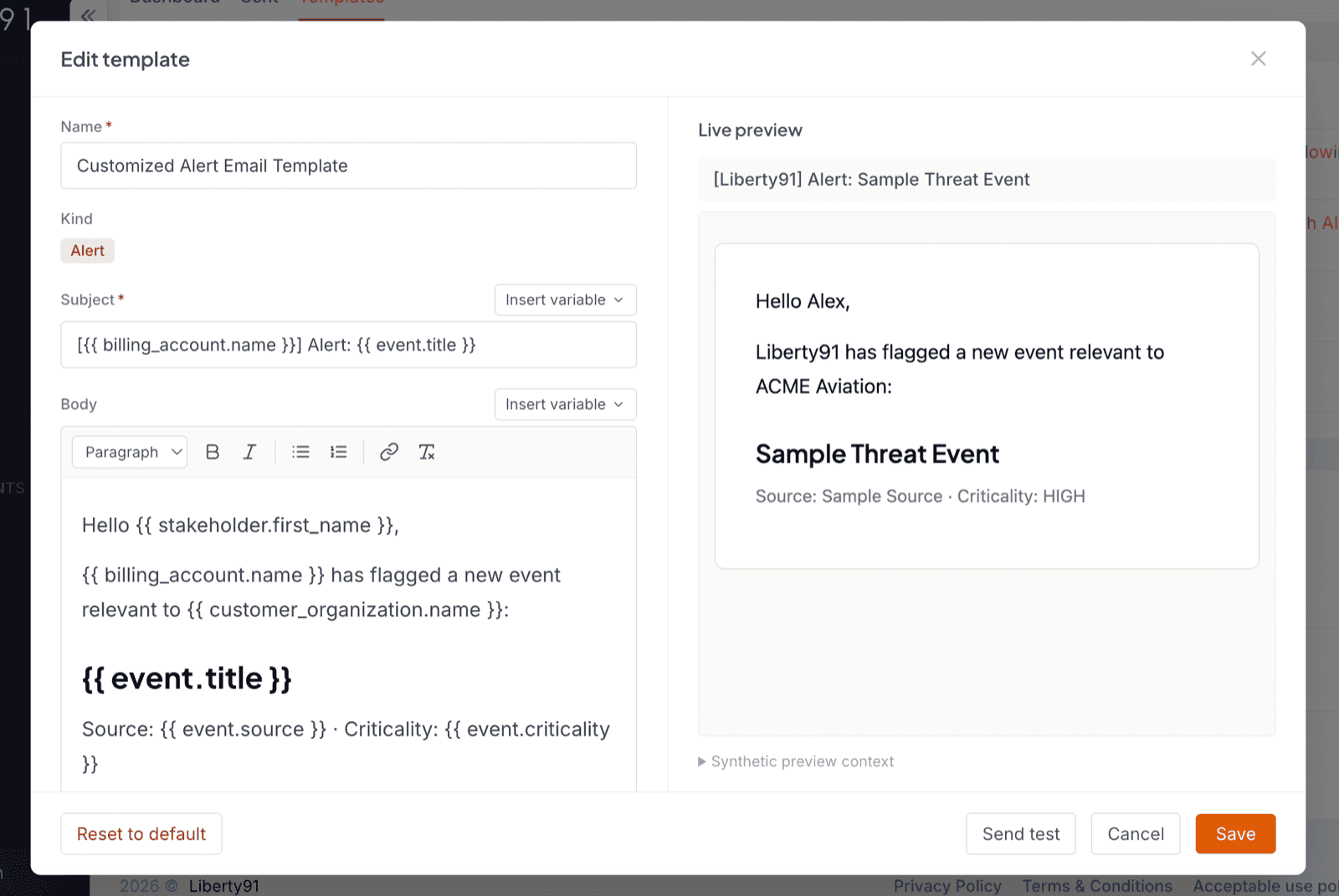
- Click Customise on the template you want to change to open the editor.
- Click Customise again to override the system defaults and make your changes.
- Set a name, a subject, and a body for the template.
- Personalize the content with variables, for example
event.titleandstakeholder.first_name. A dropdown menu lists all the available variables. - Optionally drop in an image, such as your logo.
- Click Save to see a live preview, and use send a test to send the email to your own address.
Tip
Wrap any variable token in inline code when you write it, for example event.title or stakeholder.first_name. The dropdown inserts the correct token for you.
The email templates control the emails. To change the PDF report design, see white-label report branding, and for the full picture, start with the white-label overview.
Was this page helpful?