
Save and reuse searches.
Once you have built a search you will want again, save it. A saved search stores the full criteria under a name, and it appears under Searches in the sidebar for everyone on your account, whoever created it. That makes Searches the team's shared library of questions: the searches your analysts rely on every day, ready to run, refine, alert on, or pin to a dashboard.
Save a search
On the Event Search page, set up your criteria and click Save search. This works in both modes: simple filters and advanced queries save the same way. Give the search a clear name; your team will see it too.
The Searches page
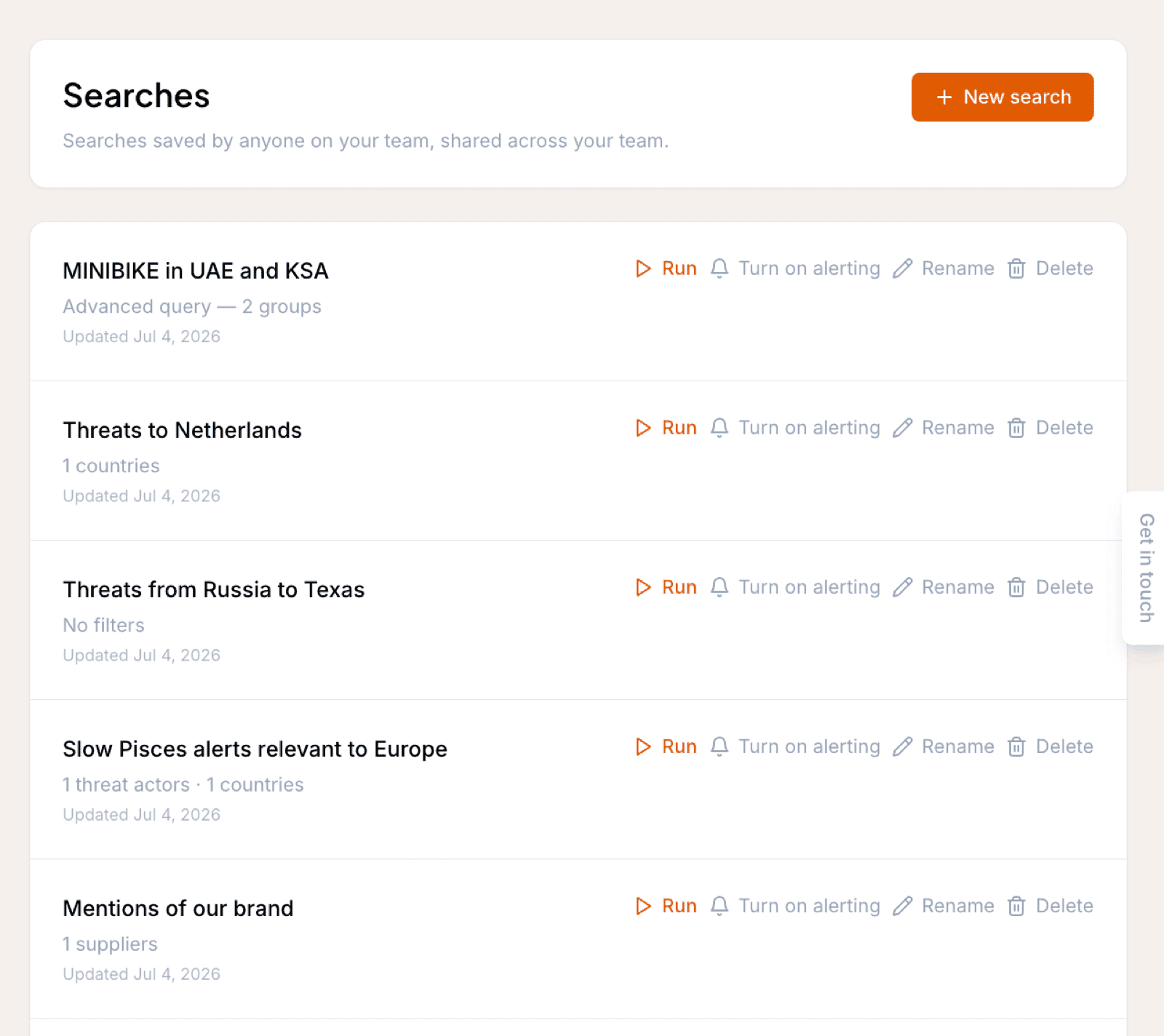
Open Searches in the sidebar to see every saved search on the account. Each row gives you:
- Run: opens Event Search with the criteria loaded and the results already showing.
- Rename: change the name without touching the criteria.
- Delete: remove the search for the whole team.
- Turn on alerting: create an alert from this search's criteria in one click. See alerts from a saved search.
The New search button jumps straight to the search builder to start a fresh one.
Refine and re-save
Running a saved search restores the builder or filter panel exactly as it was saved, so a saved search is never frozen. Load it, adjust the criteria, and save again to update it for everyone. If an alert is attached to the search, the alert follows the updated criteria automatically; the notification settings on the alert stay as they were.
You may see saved searches you never created, named after your existing alerts. Every existing alert has a matching entry on the Searches page, so the criteria you already use for alerting can also be run as a search, reported on, or pinned to a Team Dashboard.