
Customise your report branding.
Admins and Owners can fully customise the design of the PDF reports that go out to Users and Stakeholders, so you can white-label them for your own customers. You enable custom branding once, then tune the cover, body, back page, header and footer, typography, and logos. A preview lets you check everything before you save.
Enable custom branding
- Open Organization Profile from your avatar in the top right corner.
- Scroll down to Report Branding.
- Tick Enable Custom Branding.
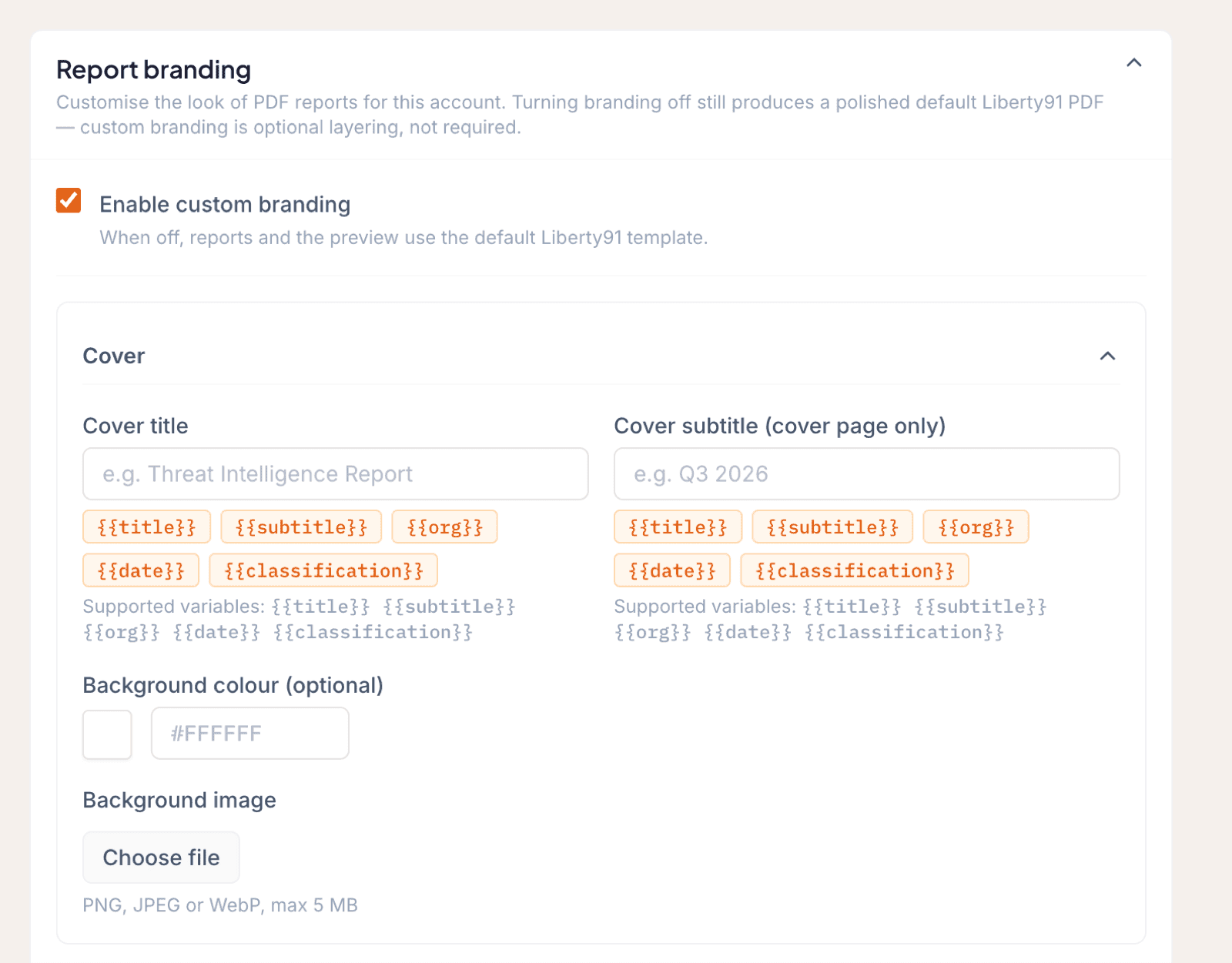
Unticking Enable Custom Branding later sends reports in the Liberty91 standard template.
Throughout the editor you can use variables in text fields. Wrap each token in inline code when you write it: title, subtitle, org (your organization's name, not your customer's), date, and classification (the TLP rating).
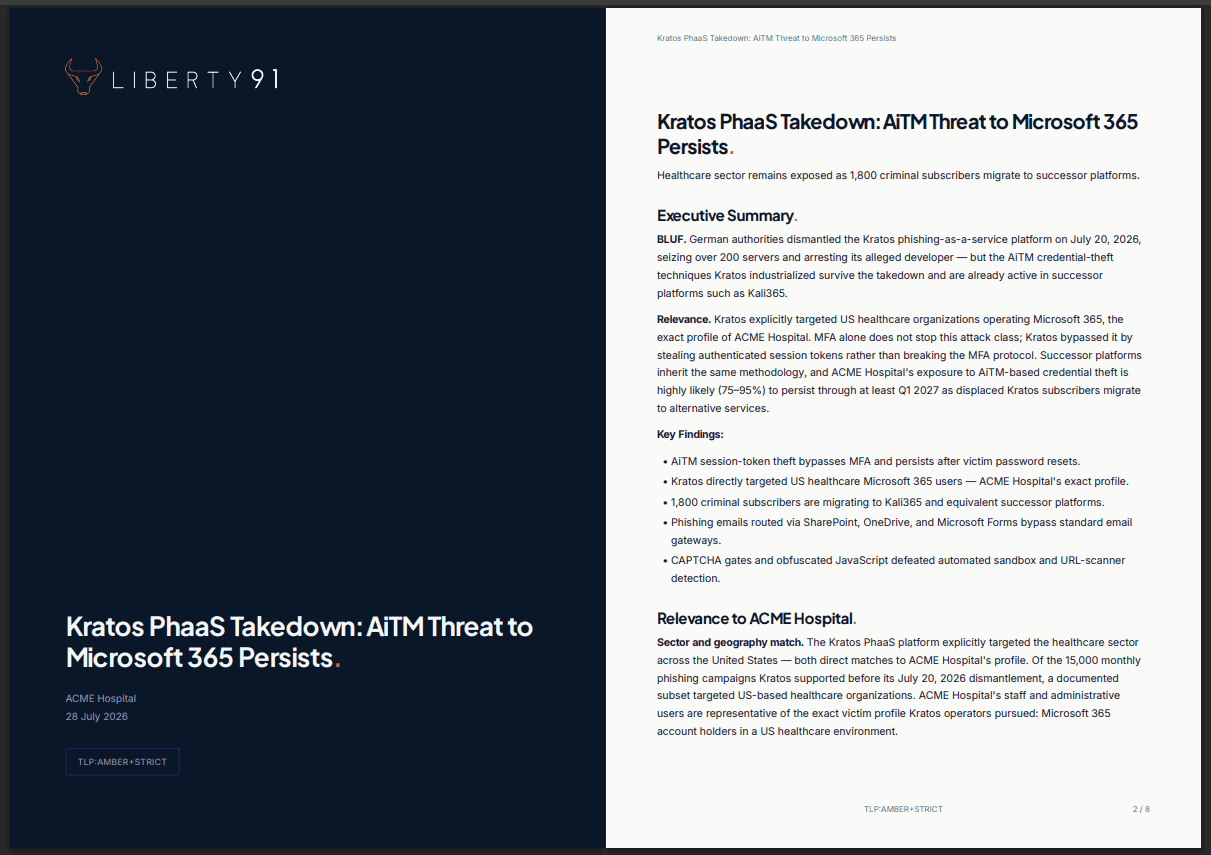
Cover
On the cover you can set the title, subtitle, background colour, and background image. If you upload an image it fills the full front page; if you do not, the background colour fills the cover. The title and subtitle accept variables such as title, subtitle, org, date, and classification. Font styling for the cover is set under Typography. Your own logo and a co-branded logo can also appear on the cover (see Logos below).
Report body
In the report body you set the page background colour and, optionally, an accent colour. If you leave the accent colour unset, it defaults back to the font colour you chose under Typography.
Back page
The back page is optional and works much like the cover. You can set rich text using the same variables, which appears centred about 78% down the page; disclaimers and contact information are common choices. You can set a background colour or a page-filling background image, and set the font, colour, and size for the back-page text.
Header and footer
The header and footer appear on the report pages. You can use the same variables here as on the cover and back page.
Typography
Typography settings are among the most impactful. Set the font family, size, and colour for each text type: cover title, headings, body text, table header text and its background colour, table cell text, hyperlinks, and code blocks. Liberty91 offers widely used fonts out of the box, and you can also name and upload your own fonts.
Logos
You can upload two logos. The Primary logo appears on the top left of the front page, and the co-branded logo (often your stakeholder organization's) appears on the top right.
Preview and save
- Click Preview to check your customised report.
- Click Save branding to persist your changes.
Report branding controls the PDF. To change the emails that carry it, see white-label email templates, and to set what your daily reports contain, see customise your Morning Reports. For the full picture, start with the white-label overview.