
Configure leaked-credential alerts.
Leaked-credential alerts are fully opt-in and configured at a fine grain: per recipient, per domain, and per category. This guide shows how to choose who hears about what, and what the resulting email and CSV attachments contain. For how findings are detected and classified, see Leaked Credential Monitoring.
An Owner or Admin manages these settings from the account's leaked-credential alert settings.
How to choose what triggers an alert
The settings present a grid. Each team member is a row, each monitored domain is a column, and each cell has three checkboxes: own-domain, service-user, and external. Tick the categories a given person should hear about for a given domain.
- Open the account's leaked-credential alert settings as an Owner or Admin.
- Find the person's row and the monitored domain's column.
- In that cell, tick the categories they should be alerted on: own-domain, service-user, and external, in any combination.
- Repeat for each person and domain. Different people can watch different things.
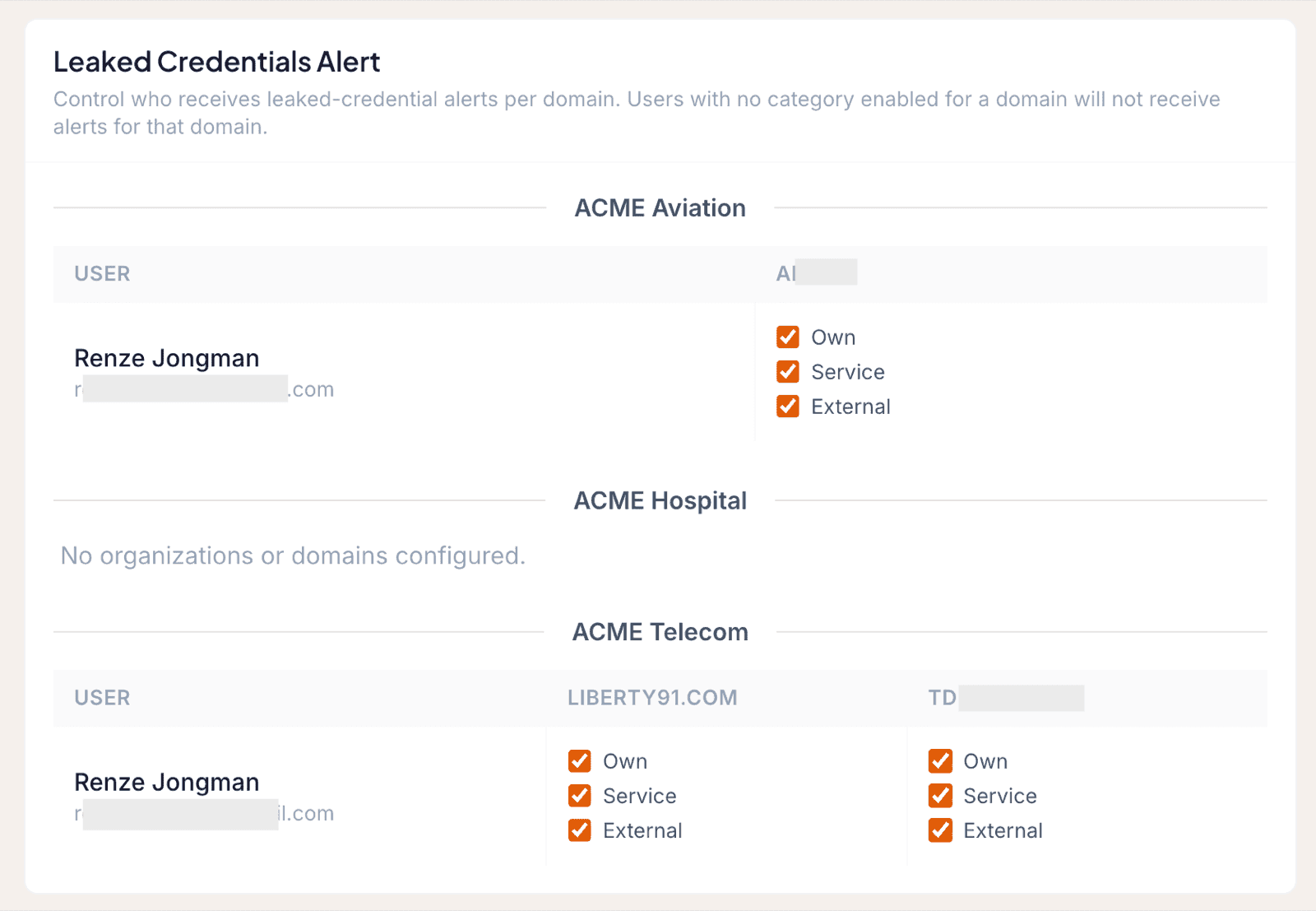
Because the grid is per recipient, per domain, and per category, different people can watch different things. Your security lead might receive every category on every domain, while a business owner only gets own-domain alerts for their own organization.
If no one is subscribed to a domain, the settings flag it, so you know that domain's findings would currently reach no one.
An alert is only generated when there is at least one new finding in a category someone is actually subscribed to. People are never emailed about categories they have opted out of, or about findings they have already seen.
What the alert email contains
When a scan turns up new credentials, each subscribed recipient gets a branded Liberty91 email. The subject line states the total count (for example, "12 leaked credentials found on the dark web"). Inside is a short explanation and a summary table broken down by organization and domain, with a count for each of the three categories plus a total per domain.
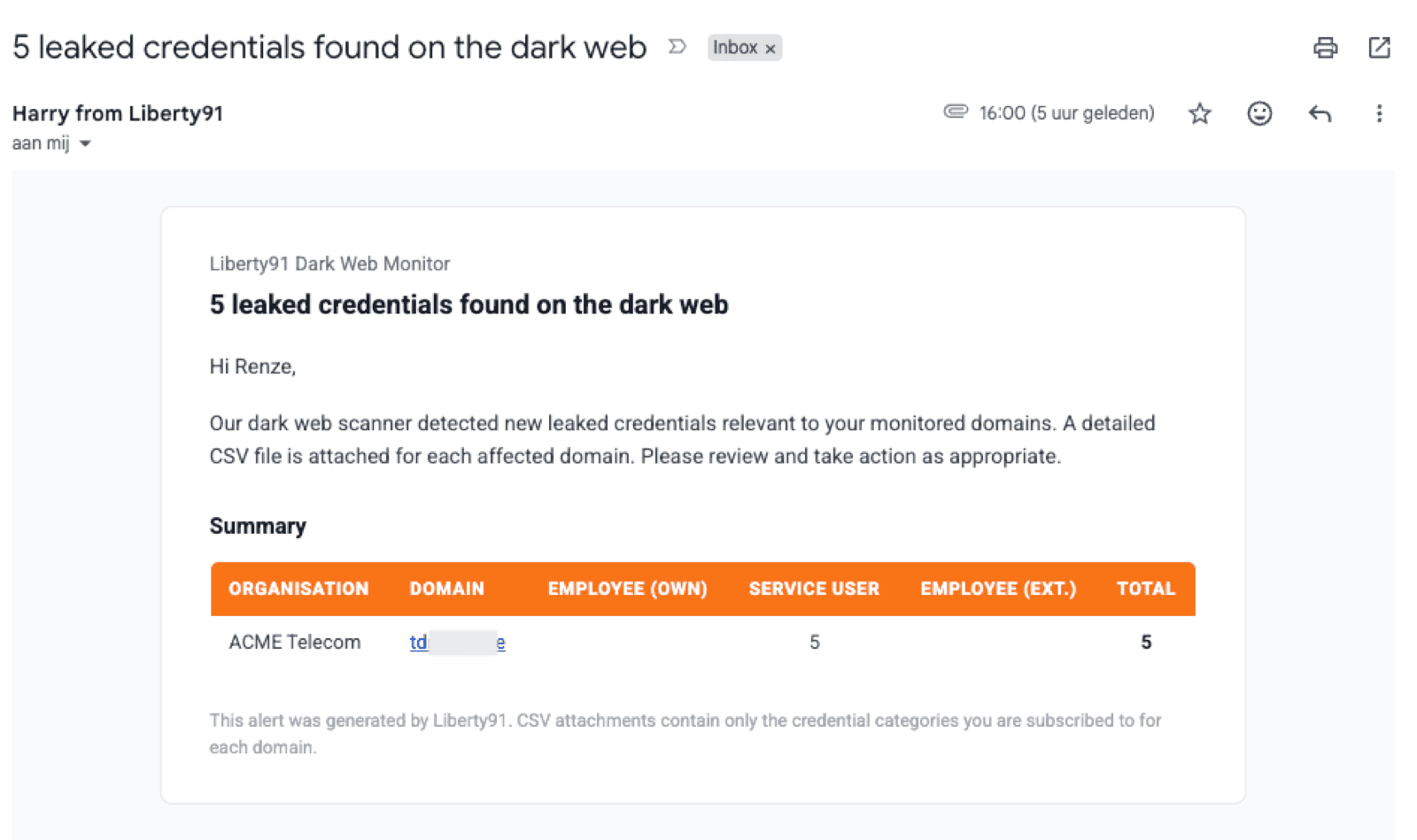
The email shows counts only. It never displays the credentials themselves, and passwords are never included. The detail comes as CSV attachments.
What the attached CSV contains
The email includes one CSV file per affected domain, named after the domain, so findings stay organized by domain. Each CSV lists the individual credentials in the categories that recipient is subscribed to for that domain.
| Column | What it contains |
|---|---|
| Account name | The account name on the leaked login |
| Email address | The affected email address |
| Monitored domain | Your domain that the finding rolls up to |
| Login domain and login URL | Where the credential grants access |
| Password hashed | A yes or no flag. The password value itself is never exported |
| Category | Own-domain, service-user, or external |
| Leak type | Infostealer log or data breach |
| Malware family | The infostealer family, for infostealer logs |
| Breach name | The breach name, for data breaches |
| Leak date | The date of the leak |
So a recipient subscribed to only own-domain for yourcompany.com receives a single
yourcompany.com CSV containing just the own-domain findings.
Frequently asked questions
Who can configure leaked-credential alerts?
An Owner or Admin, from the account's leaked-credential alert settings.
Will people be emailed about findings they have already seen?
No. An alert is only generated when there is at least one new finding in a category that the recipient is subscribed to for that domain.