
Work with the Organization page.
Everything about one of the entities you protect lives on its Organization page, and it is split into two tabs. The Dashboard tab answers what is happening to this Organization right now. The Organization tab is the profile behind that: the Assets, Suppliers, Stakeholders, Documents, and requirements that decide what the platform surfaces in the first place.
If you are new to the model, read Organizations first, and in particular how relevance is decided. Almost everything on the Dashboard tab is downstream of the profile on the Organization tab, so read the two together.
The Dashboard tab
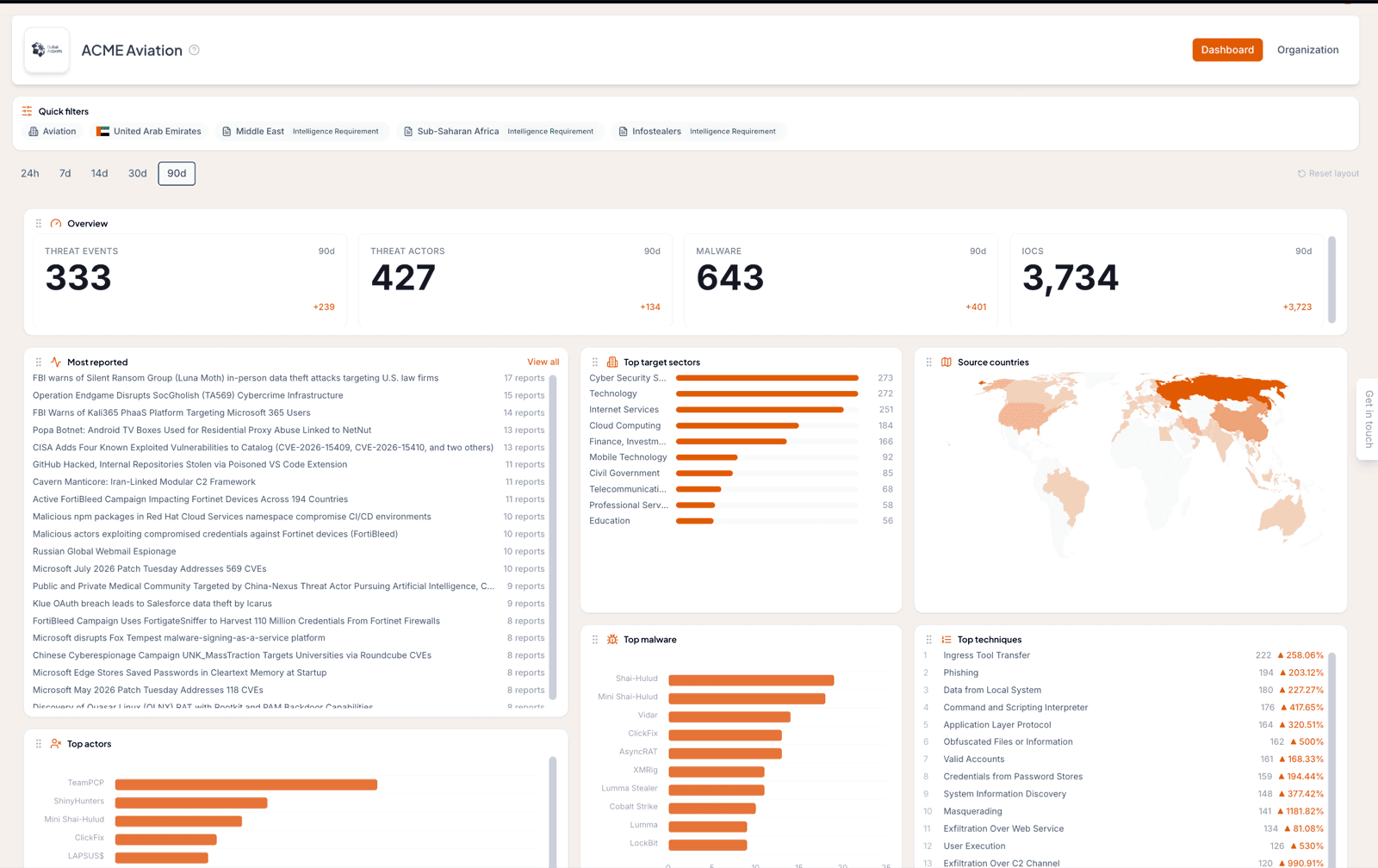
The Dashboard tab carries the same panels as the home dashboard, scoped to intelligence relevant to this Organization alone. Same timeframe control, same overview counts against the previous period, same rankings of actors, malware, ATT&CK techniques, vulnerabilities, sources, and targeted sectors, and the same source-country map. The difference is that every answer is that Organization's: the techniques most used against occurrences relevant to them, the actors that turned up in their sector and region.
Where the home dashboard shows you the landscape, this shows you one client's slice of it, which is what you want open before a customer call.
Quick filters
Above the panels sits a row of quick filters: one chip per sector, region, and Intelligence Requirement on the Organization's profile. Region chips show the flag and the full country name rather than a code, so a list of a dozen reads at a glance.
Clicking a chip opens the Threat Events list already filtered to it. This is the shortest path from "this client is in financial services" to the reporting that actually drove the relevance, and it is the fastest way to answer a "why am I seeing this?" question from a customer.

The Organization tab
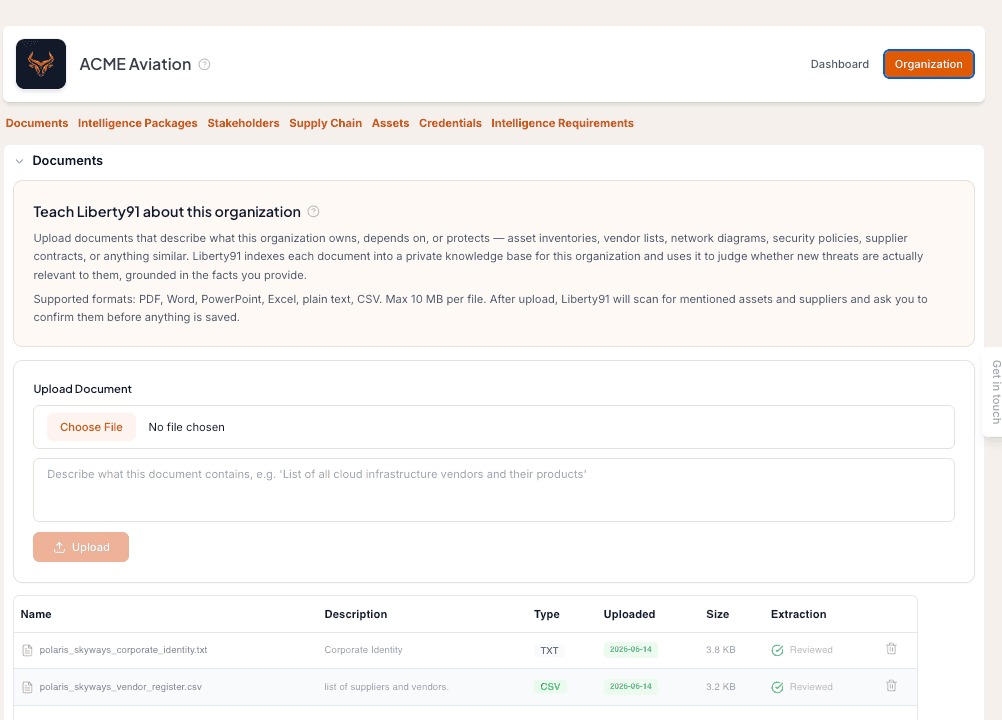
The Organization tab keeps the whole profile on one page, in sections:
| Section | What it covers |
|---|---|
| Documents | Files you upload to teach the agent about the Organization |
| Intelligence Packages | The intelligence products generated for this Organization |
| Stakeholders | The people who receive those products |
| Supply Chain | The third parties the Organization depends on |
| Assets | The technologies the Organization runs |
| Credentials | Leaked-credential findings against this Organization's monitored domains |
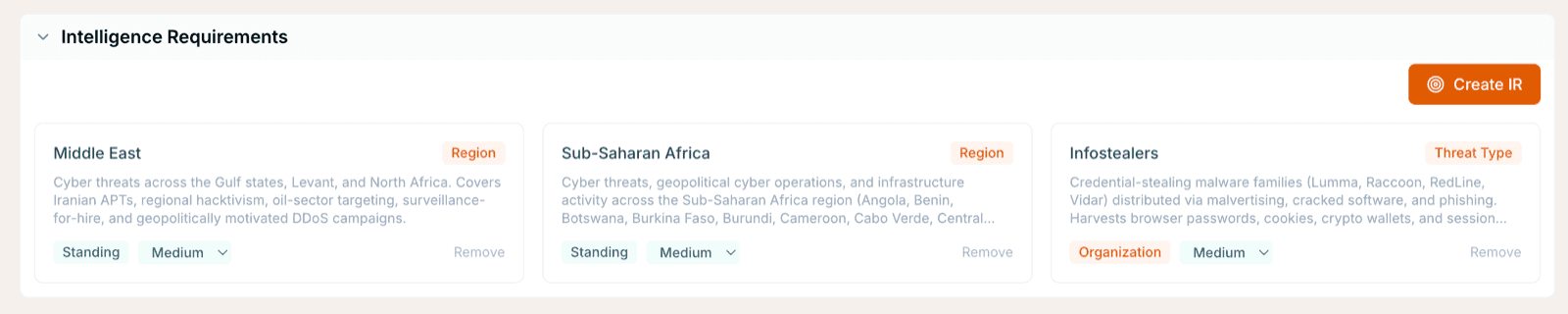
| Intelligence Requirements | The topics this Organization follows |
Each section works the same way: a button to create a record, and each existing row can be opened and edited in place or removed. Editing matters more than it sounds: profiles drift, and a decommissioned Asset left on the profile keeps pulling irrelevant reporting towards that Organization.
Adding, editing, and removing records here requires at least the Analyst role. Viewers can read the profile but not change it. See User roles and permissions.
Add an Asset
An Asset is a technology the Organization runs. Assets drive the direct-exposure route to relevance, so they are the highest-value thing on this page to get right.
- Open the Organization and go to the Organization tab.
- Find the Assets section and click Add.
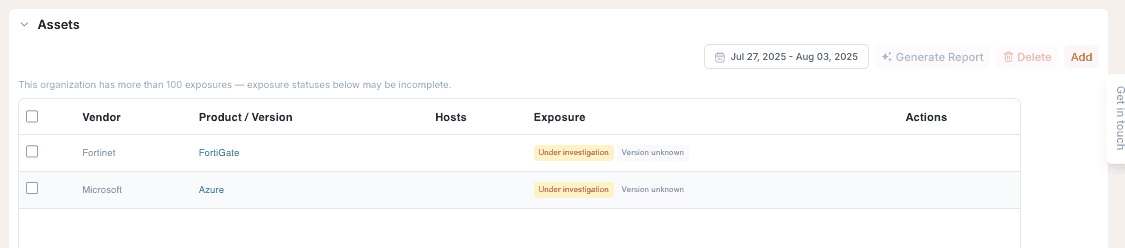
- Enter the vendor, the product, the version, and optionally the hosts it runs on.
- Save. Liberty91 starts building an Asset Threat Profile for it straight away.

To change an Asset, open its row, edit the fields, and save. To remove one, use the delete action on the row. See Assets and Hosts for what the platform does with them, including populating them automatically from an ASM integration.
The section header carries a date-range picker and a Generate Report action for the selected Assets, and each row shows its exposure status as the platform investigates it.
Add a Supplier
A Supplier is a third party the Organization depends on but does not host. Suppliers work like Assets in reverse: you are watching someone else's exposure because it becomes yours.
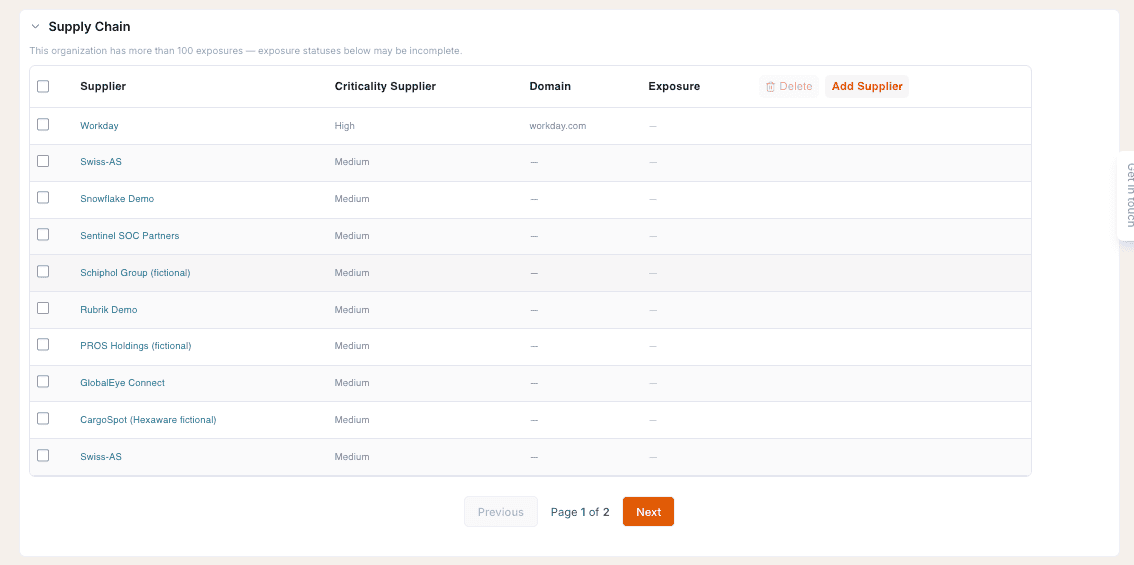
- On the Organization tab, find the Supply Chain section and click Add supplier.
- Enter the supplier's name, its domain, and how critical it is to the Organization.
- Save. Liberty91 begins maintaining a Third-Party Threat Profile for it.

Set criticality honestly rather than uniformly high. It is what separates the supplier whose breach is an incident from the one whose breach is a note. See Supply chain.
Add a Stakeholder
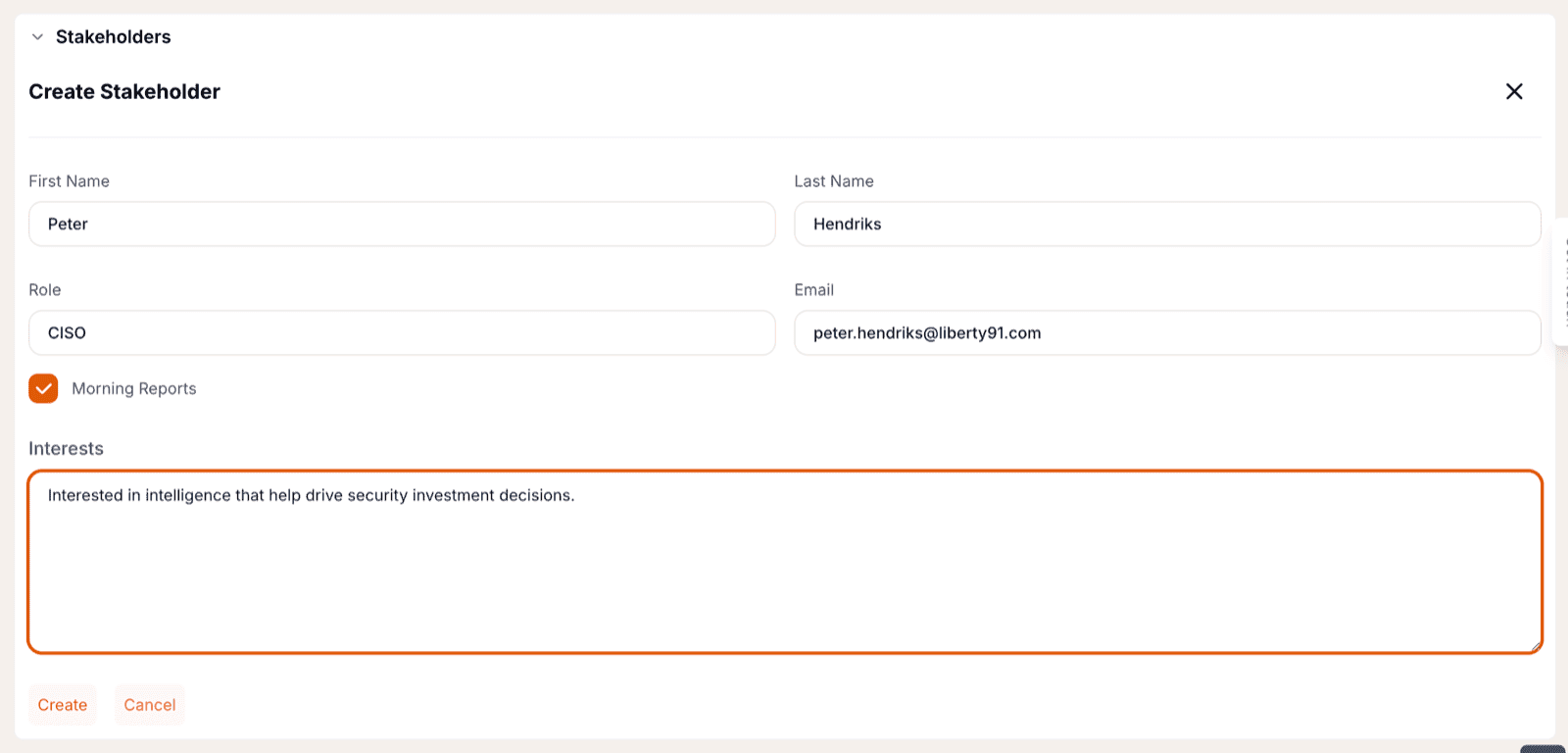
A Stakeholder is a person who receives intelligence about this Organization.
- On the Organization tab, find the Stakeholders section and add a Stakeholder.
- Enter their name and email address, their role, and the interests they care about.
- Choose whether to subscribe them to the Morning Report for this Organization.
- Save.
Role and interests are not filing metadata. They change how the products that reach that person are written, so a product owner interested in zero-day exploitation gets an alert worded for that job rather than a generic one. See Stakeholders and Add Stakeholders.
Upload a Document
Documents are how you hand the agent context that is not in any feed: network maps, corporate identity documents, existing threat profiles.
- On the Organization tab, find the Documents section and upload the file.
- Wait for extraction to finish. The agent reads the document and proposes the Assets and Suppliers it found.
- Review the proposed records and confirm the ones you want to keep.
Nothing is added to the profile until you confirm it. That gate is deliberate: extraction is good, but an Asset list is something you should have signed off. See Seed Organization documents.
Monitored domains and credentials
Leaked-credential findings tie to an Organization through its domains, and the Credentials section is where you read them.
The domains themselves are not something you add here. Liberty91 sets them up for each Organization during onboarding, so tell your account team which domains to watch and ask them whenever the list needs to change. Monitoring is per domain, so an Organization is only scanned on the domains configured for it.
See Leaked Credential Monitoring for how findings are classified, and Configure leaked-credential alerts for who hears about them.
Assign Intelligence Requirements
Intelligence Requirements tell the platform which topics this Organization follows, and they are one of the four routes to relevance. Standing requirements apply across every Organization on the account; others are assigned to specific Organizations from this section. See Intelligence Requirements and Set your Intelligence Requirements.
Frequently asked questions
Where do I add an Asset or a Supplier?
Open the Organization, go to the Organization tab, and find the Assets or Supply Chain section. Assets use an Add button and Supply Chain an Add supplier button. Each existing row can be edited or removed from the row itself.
What are the quick filters on the Organization dashboard?
Clickable chips for the Organization's sectors, regions, and Intelligence Requirements. Clicking one opens the Threat Events list already filtered to it, so you go from a profile attribute to the reporting behind it in one step.
How do I add a domain to leaked-credential monitoring?
You do not. Monitored domains are set up for you by the Liberty91 team when your account is onboarded, so tell your account team which domains to watch. The Credentials section shows the findings against them.