
Group-IB module.
The Group-IB module automatically ingests the reports and events from your Group-IB portal into Liberty91. To set it up you whitelist Liberty91's IP address in Group-IB, generate a personal token, then enter your username and token in the module. You need an active Group-IB licence, and only the report types your licence covers will import.
You need an active Group-IB licence. You can select any report type in the module, but types your licence does not include will not be imported.
How to connect Group-IB
Activation takes three steps: whitelist our IP, generate a personal token, then enter your credentials in Liberty91.
Step 1: Whitelist Liberty91's IP address
- Log in to your Group-IB account at sso.group-ib.com.
- Open Help Center at the bottom of the sidebar.
- Go to Authentication, access and user management, usually the top-left card under Frequently Asked Questions.
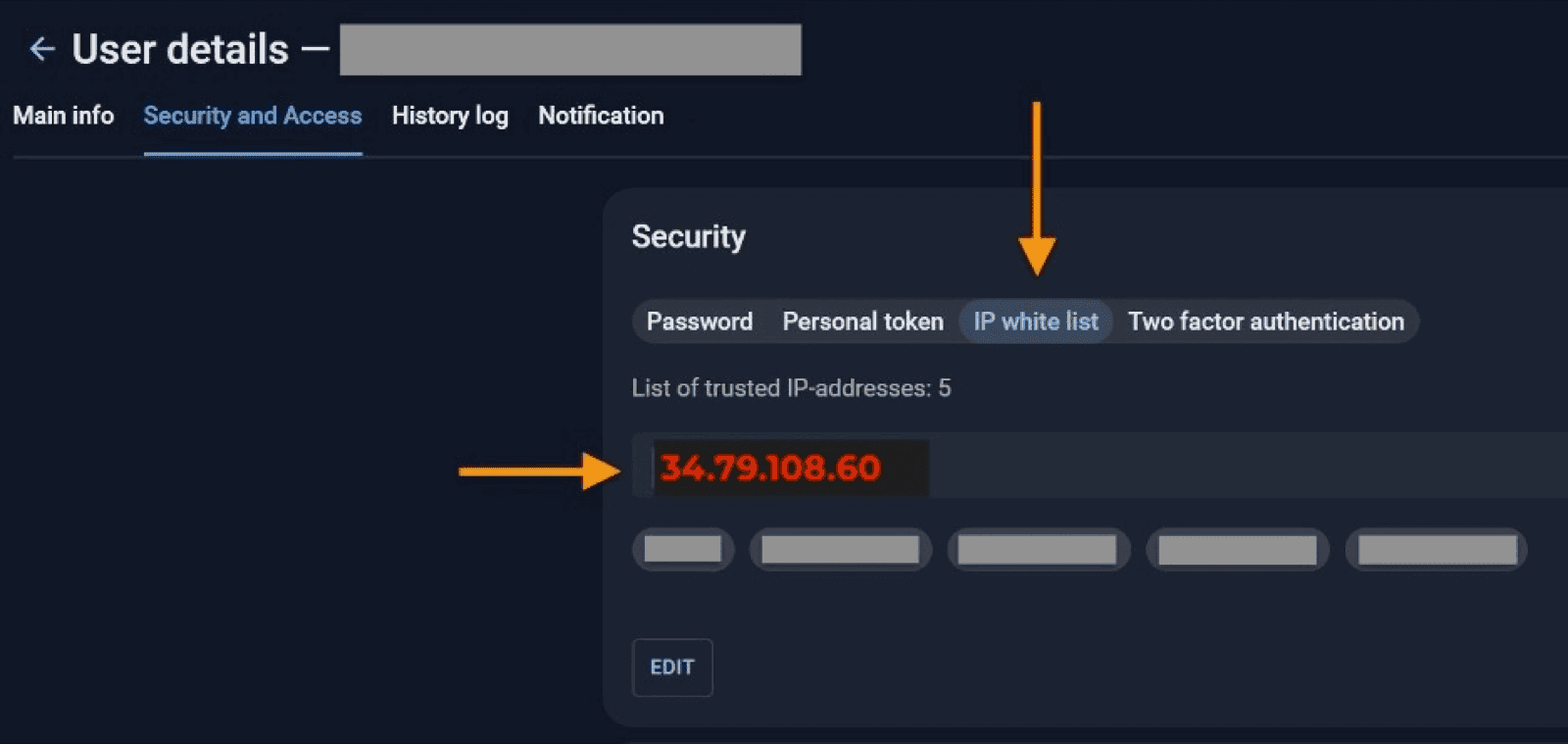
- On your User Details, click Security and Access.
- Click IP white list, add the IP address
34.79.108.60to the list of trusted addresses, and click submit (or add).
Step 2: Generate a Personal Token
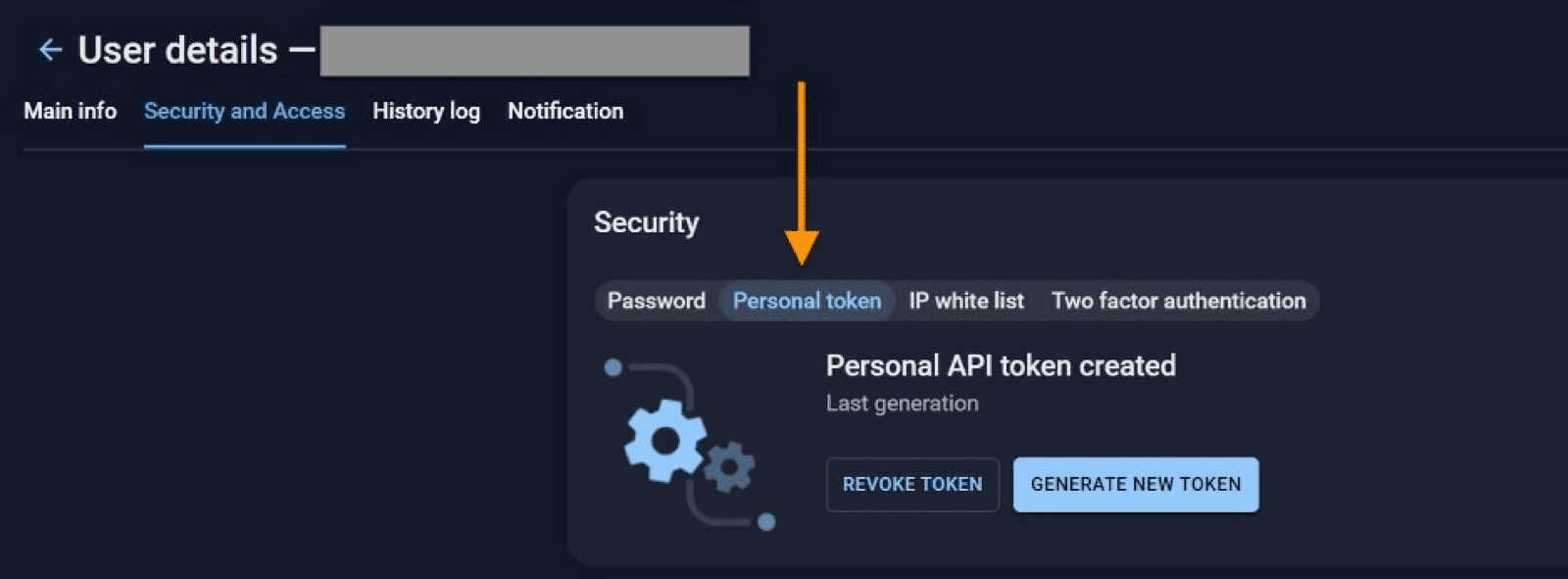
- Stay on the same Security and Access tab and click Personal token.
- Click Generate New Token.
- Copy the token. You need it in the next step.
Step 3: Enter your credentials in Liberty91
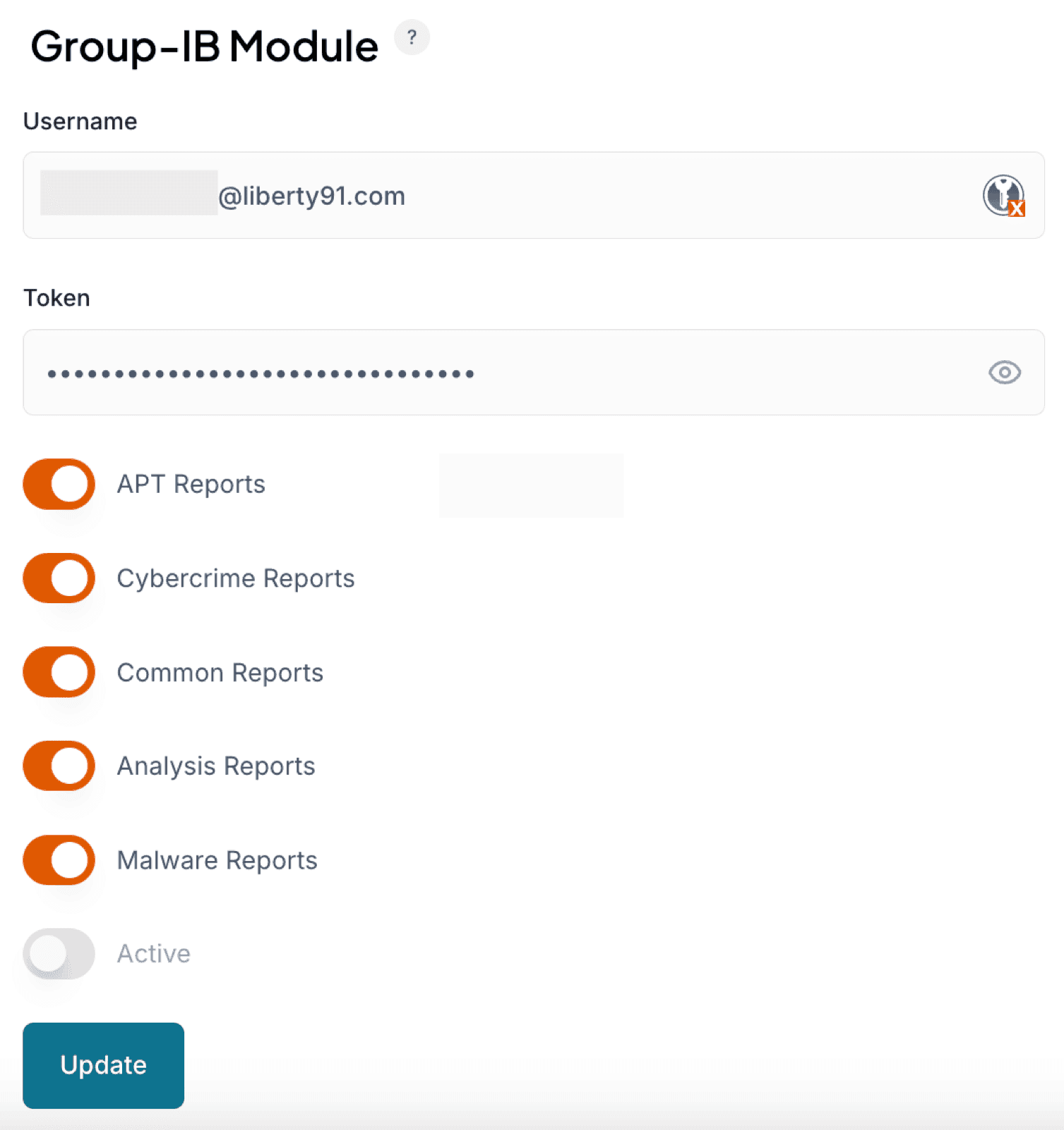
- In Liberty91, go to Modules and open the Group-IB module under Collection modules.
- Enter your username (the email address you log in with) and the token you just generated.
- Select the report types you want to import. Types outside your licence will not import even if selected.
- Set the module to Active and click Update.
New Group-IB Events now appear in the middle column of your Recent Threats dashboard.
Frequently asked questions
Which IP address do I whitelist in Group-IB?
34.79.108.60. Add it to the IP white list under Security and Access in your Group-IB user details.
Can I import report types my Group-IB licence does not cover?
No. You can select any report type in the module, but types outside your licence are not imported.
What credentials does the module need?
The email address you log in to Group-IB with, and a personal token generated from the Security and Access tab.