
Slack module.
The Slack module sends Events from Liberty91 straight into a Slack channel, either through Alerts or directly from an individual Event. You can set up multiple Slack integrations, each pointing to a single channel, so one might feed a general alerts channel and another a channel for a specific customer or team. The connection works through an incoming webhook URL that Slack generates for you.
You need permission to create an app in your Slack workspace and to add an incoming webhook to the channel you want messages to land in.
How to create the Slack webhook
- Go to the Slack API portal at
api.slack.com/appsand click Create New App, then From scratch. - Give the app a descriptive name, for example "Liberty91 Alerts", select the workspace you want it to post into, and click Create App.
- In the sidebar under Features, click Incoming Webhooks and toggle Activate Incoming Webhooks on.
- Scroll down, click Add New Webhook to Workspace, pick the channel you want messages to land in, and click Allow.
- Slack generates a webhook URL that looks like
https://hooks.slack.com/services/T00000/B00000/XXXX. Copy it.
Connect the module in Liberty91
- In Liberty91, go to Modules and open the Slack module.
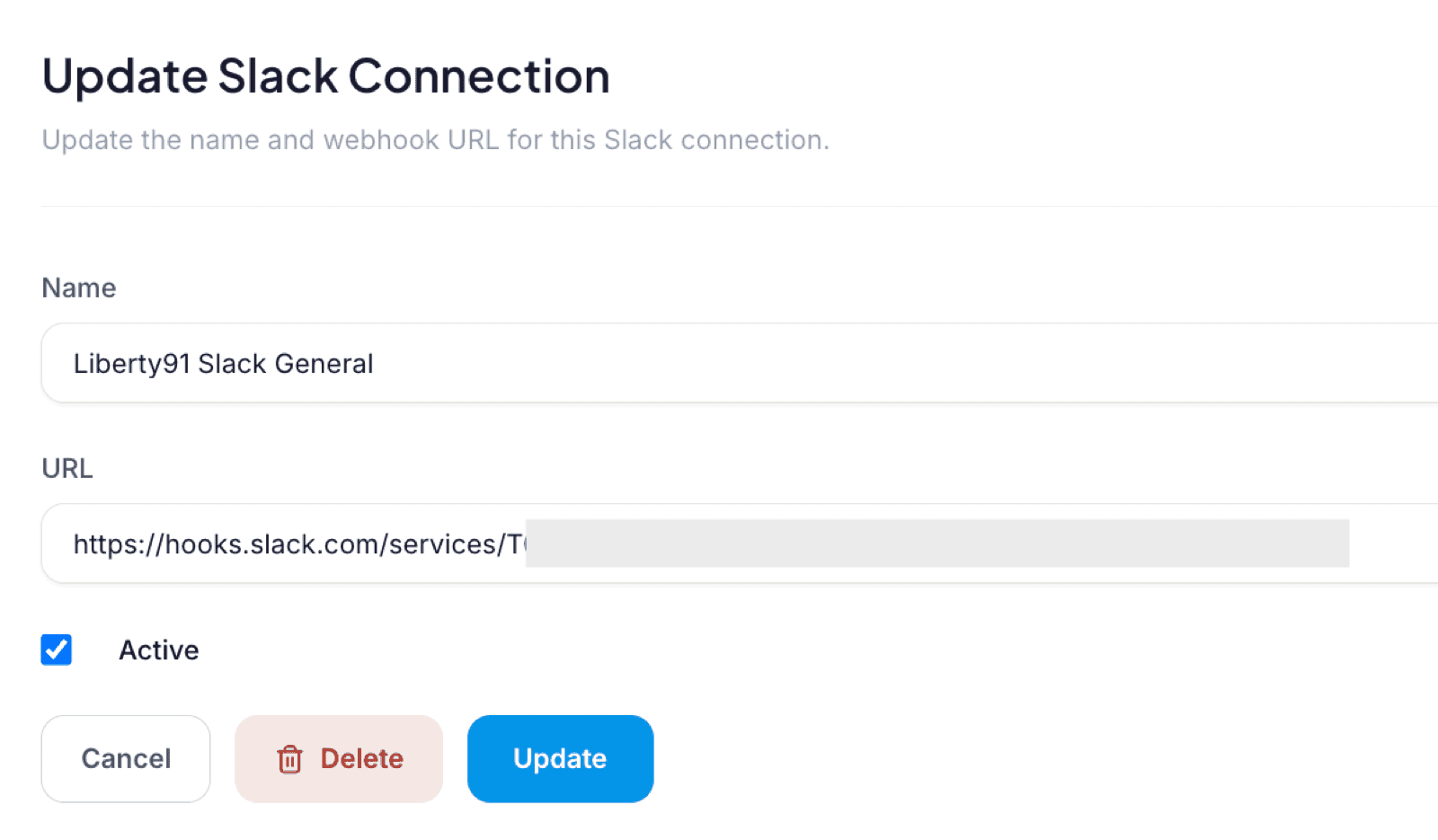
- Paste the webhook URL into the field.
- Give the integration a name so you can tell your channels apart, then activate it.
From that point on you can route Events and Alerts to that Slack channel. To send a specific Alert, for example "threats to the financial sector", set up your Slack integration as the receiving destination for that Alert, the same way you would with the MISP module. For routing to arbitrary HTTP endpoints, see the Webhooks module.
Frequently asked questions
What do I need to connect Slack to Liberty91?
Permission to create an app in your Slack workspace and to add an incoming webhook to the channel you want messages to land in. Slack then generates the webhook URL you paste into Liberty91.
Can I send Events to more than one Slack channel?
Yes. Each Slack integration points at a single channel, so set up one integration per channel, for example a general alerts channel and a channel per customer or team.
Can I route a specific Alert to Slack?
Yes. Set your Slack integration as the receiving destination for that Alert, and every Event matching it posts to the channel.